
Configure an LLM API
Before you start
Configure a large language model (LLM) API so the app can generate video scripts.
Need an API key?
See Zhipu AI or OpenAI for setup instructions. Availability and pricing depend on the provider.
Open the configuration
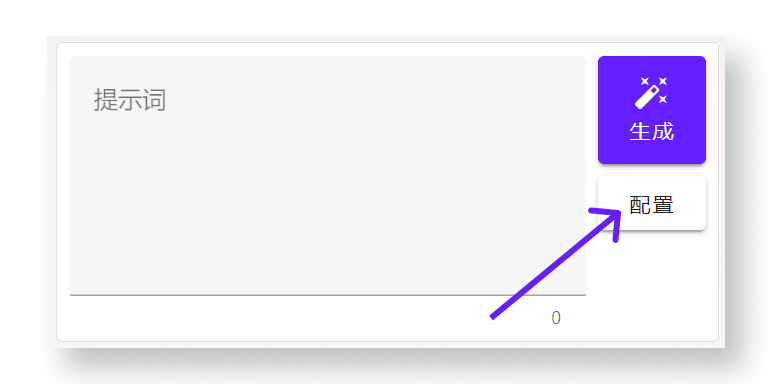
Click Configure in the LLM panel on the left.
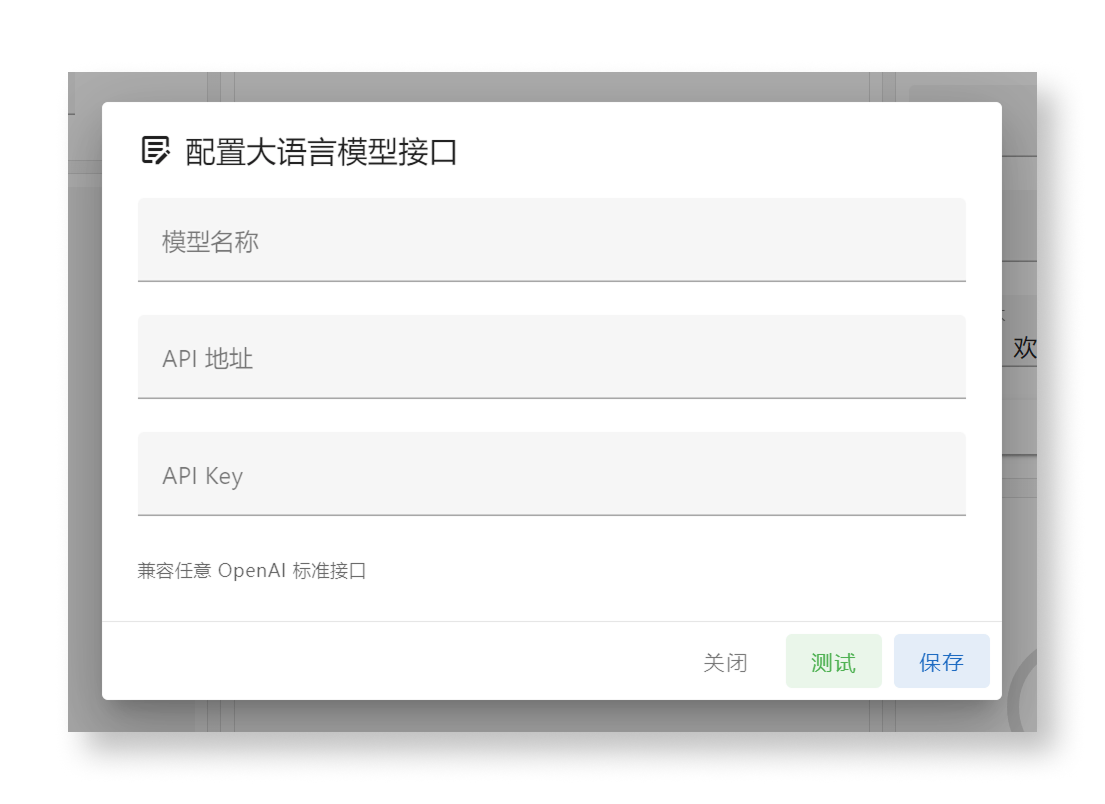
The following fields are required:
- API URL: The provider's API base URL, such as
https://api.openai.com/v1. - API Key: Your access key from the provider.
- Model name: The exact model identifier supported by your provider. This value is sent in API requests, so it must not be an arbitrary display name.
Compatible providers
The app supports providers exposing an OpenAI-compatible API, including Zhipu AI, Kimi, OpenAI, OneAPI, and OpenRouter. Check your provider's documentation for endpoint and authentication requirements.
Enter and test your settings
For a Zhipu AI example, use the API URL and model name described in Get a Zhipu AI API key.
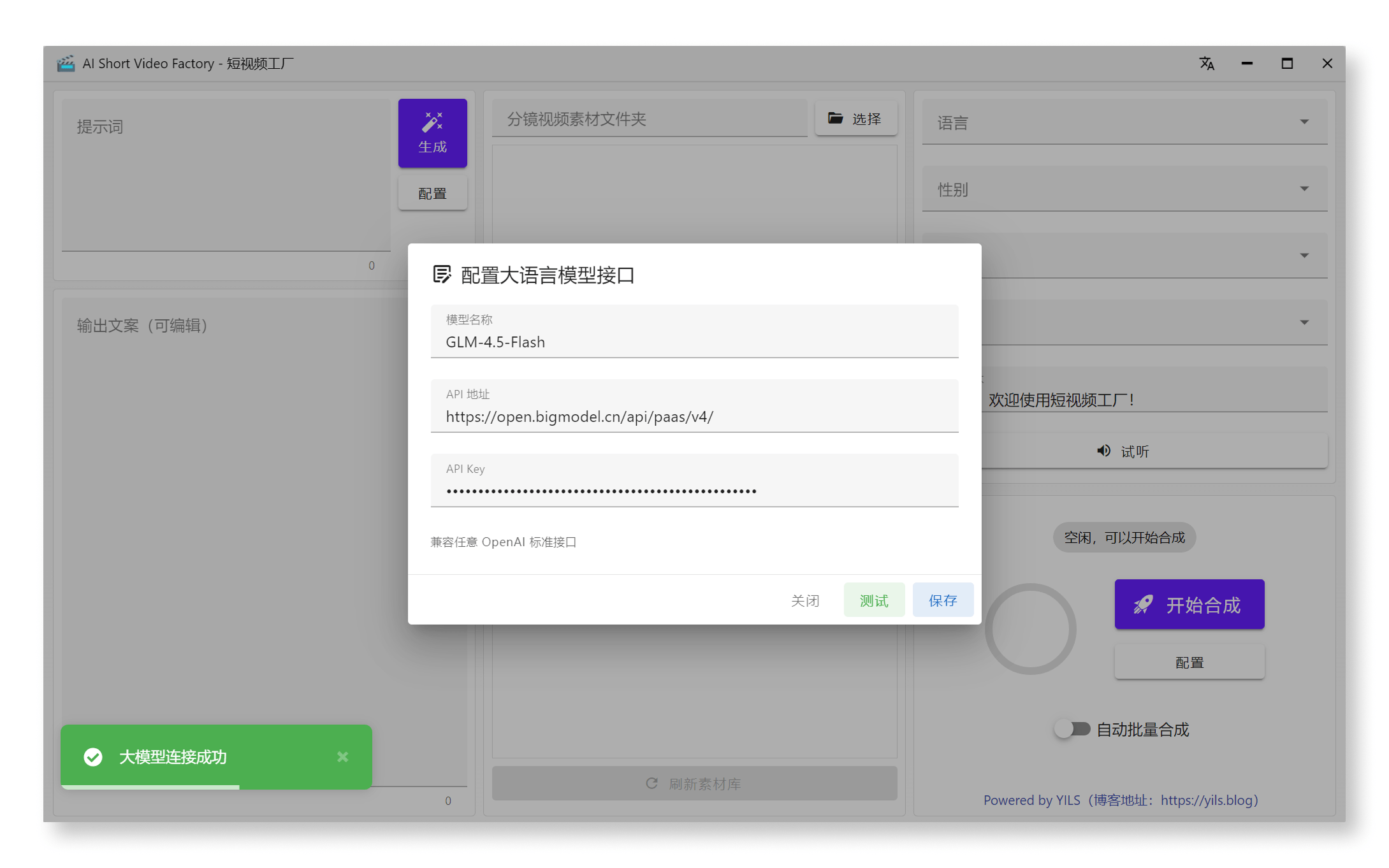
Click Test after entering your settings. If the app reports a successful connection, click Save.
Your LLM API is now configured. Keep your API key private and avoid including it in screenshots or issue reports.