Generate a short video
Overview
Combine your script, voiceover, and video clips using the app's rendering workflow.
Open rendering settings
The rendering panel is in the lower-right corner. Before your first render, click Configure below the main Start Rendering button.
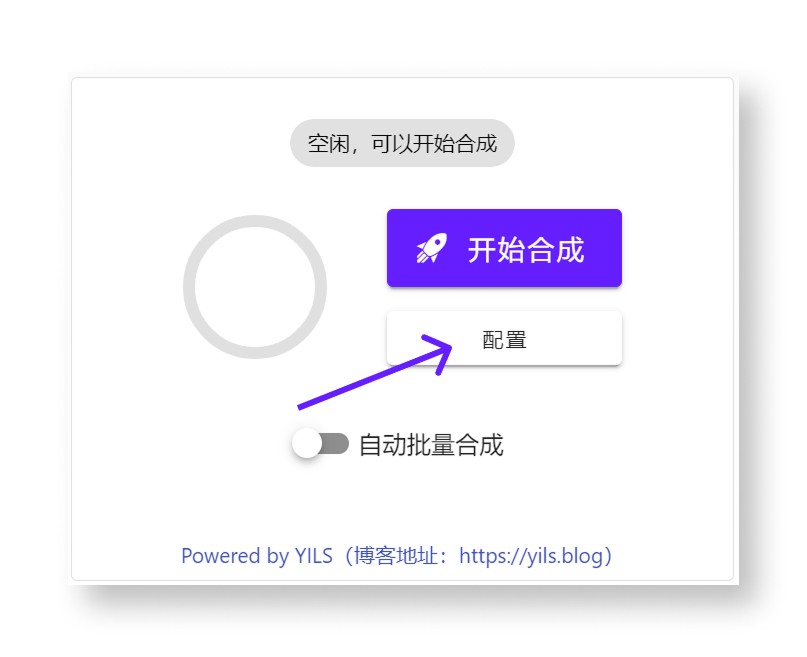
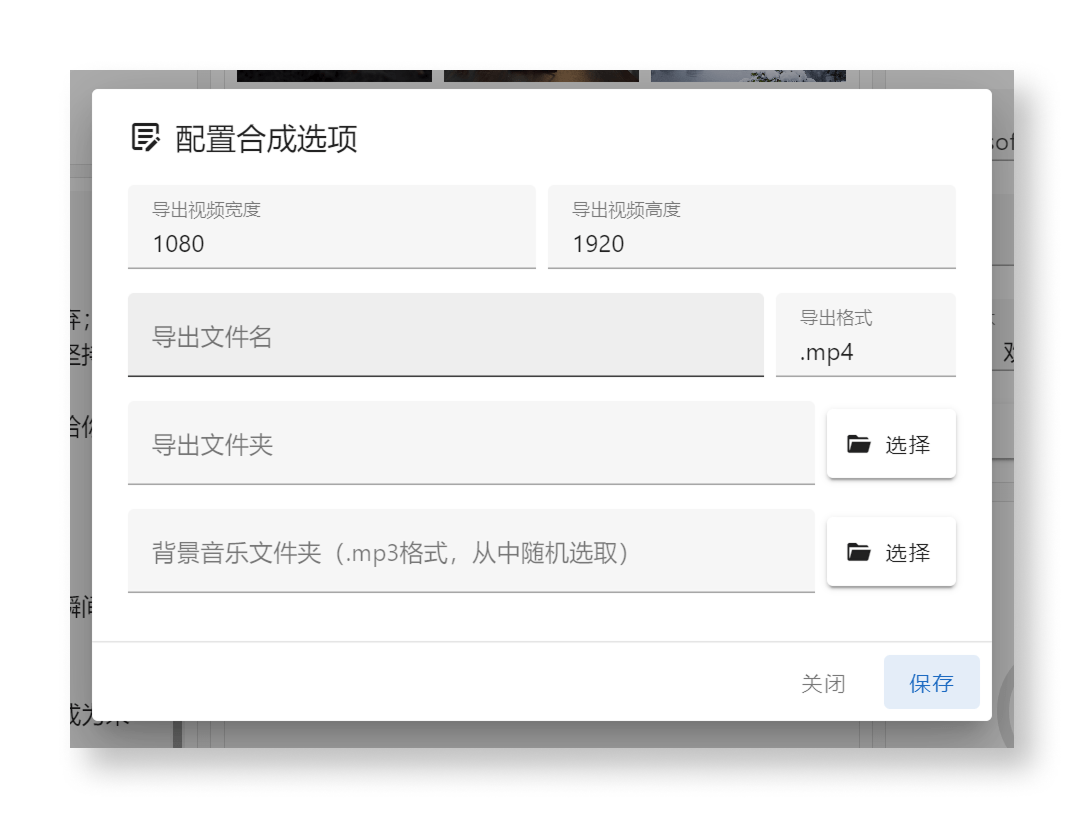
Configure the following:
- Resolution (required): Defaults to 1080×1920, portrait Full HD.
- Output filename (required).
- Output format (required): Currently fixed to mp4.
- Output folder (required).
- Background music folder (optional): If provided, a track is selected at random for the video.
Set the output resolution
For landscape footage recorded at 1920×1080, use 1920×1080 for landscape Full HD output.
Higher resolutions
You can choose a higher resolution, such as 3840×2160 for landscape 4K. For best results, use footage with a matching resolution.
Match the aspect ratio
Use the same aspect ratio as your clips where possible. Mismatched ratios can introduce black bars or cropping; the app attempts to preserve the footage.
Fill in the remaining settings:
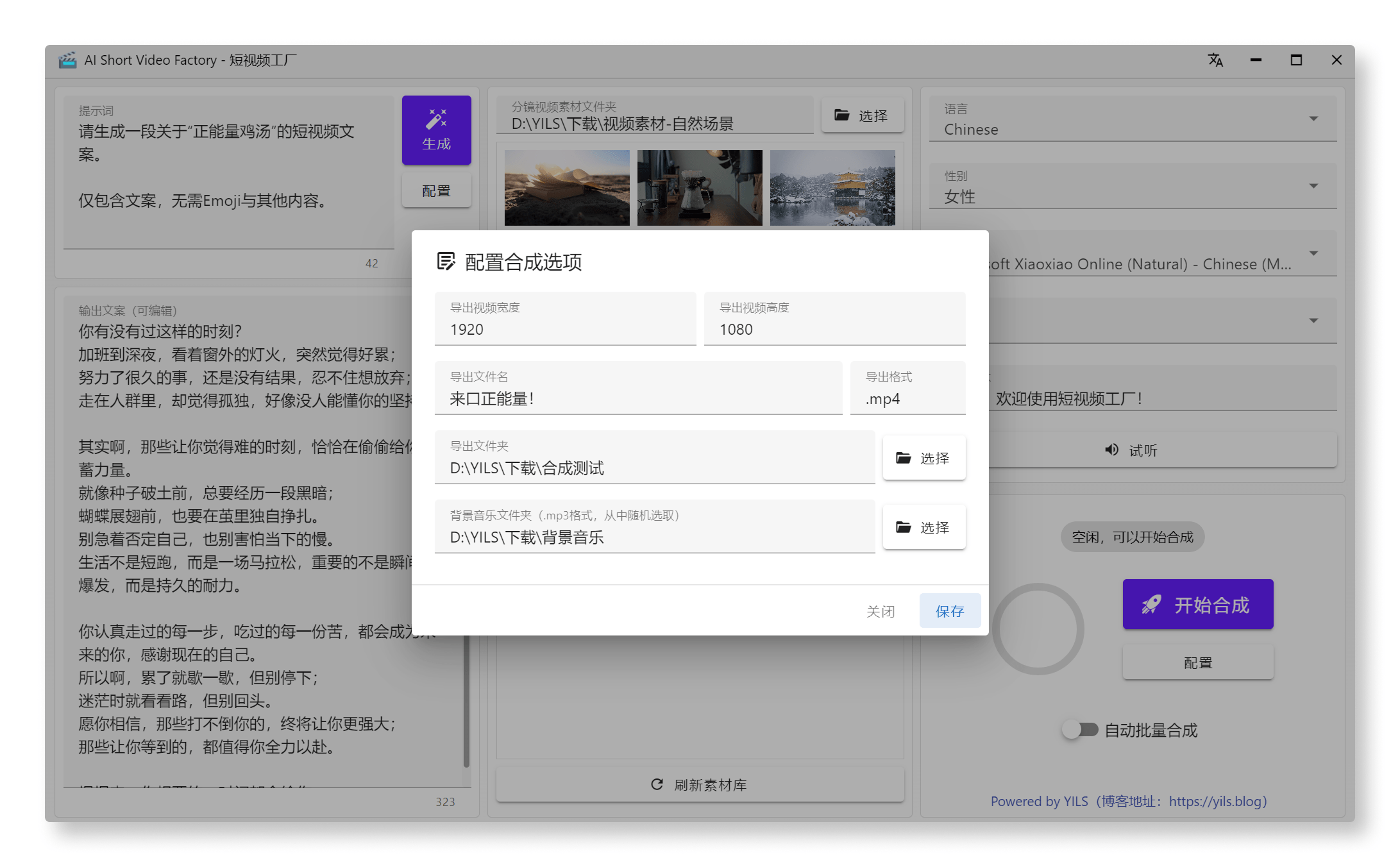
Click Save to return to the main window.
Start rendering
Check your prompt, video clips, and TTS settings, then click Start Rendering. The rendering panel displays progress, and you can stop the task at any time.
Existing scripts
If the output script already contains text, the app uses it directly. If it is empty, the app first calls your configured LLM to generate a script from the prompt.
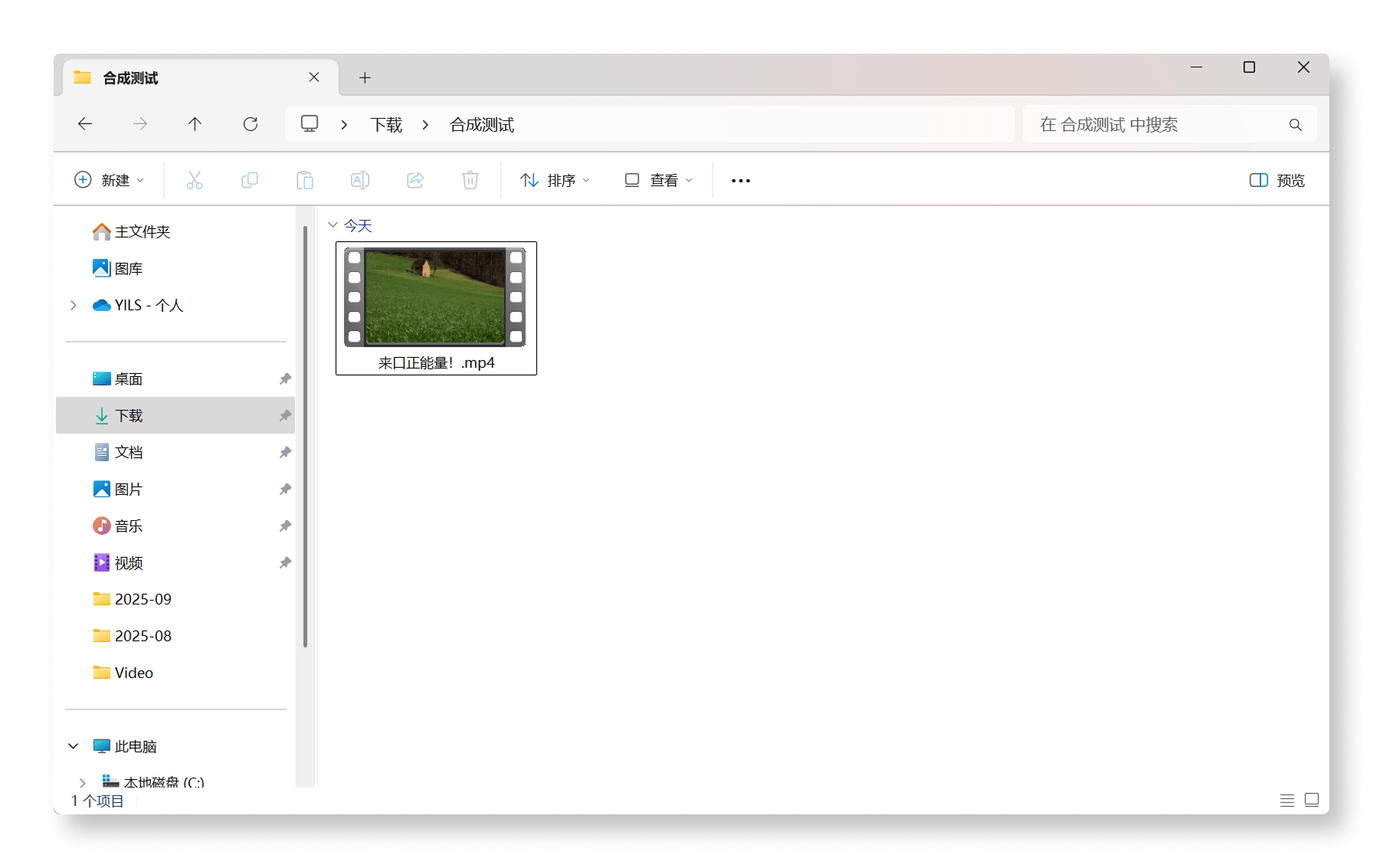
When rendering finishes, open your output folder to find the completed video.